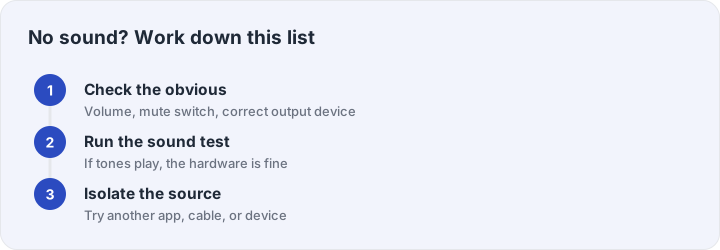
Silence is almost never a mystery — it is a chain, and one link is broken. The trick is to stop poking at random settings and test the chain in order: source, then system, then hardware. Each step below ends with a pass/fail answer, and the whole walk takes most people under ten minutes.
Step 1: prove the chain with tones
Run the sound test at the top of this site. If the test tones play, your entire output chain works — the problem lives inside the app that was silent, and you can skip to the app-mixer step. If the tones are silent too, stay here and keep walking. This single checkpoint eliminates half the guesswork, because browser-generated tones bypass every media player, every app mixer and every codec on your machine.
Step 2: output device
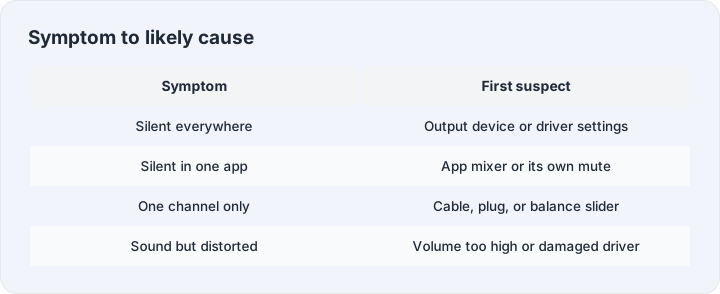
Open your system sound settings and look at the selected output. Modern machines accumulate output devices — monitors over HDMI and DisplayPort that have no speakers, wireless headset adapters that went to sleep, virtual audio devices left by conferencing software. Windows adds a second trap: per-app output devices, where one app can be aimed at a different output than the rest of the system. Set the physical device you can touch as the default, and check the app’s own output matches.
Step 3: mixer and mute states
Three separate mute switches bite people. The system volume, obviously. The app’s own mixer entry, which on some systems can be muted independently and stays that way after updates. And hardware mute switches or buttons on headsets and keyboards, which software indicators sometimes fail to reflect. Cycle each one explicitly rather than assuming.
Step 4: isolate hardware
Swap one link at a time. Different port: front panel vs rear jack, or the other USB port. Different cable, if your gear allows it. Different device entirely: headphones on a phone prove the headphones; speakers on another source prove the speakers. Whichever swap brings sound back marks the broken link — and if a single channel is missing rather than all sound, the channel test plus a gentle plug-wiggle will separate a broken cable from a balance slider at half-center.
Step 5: drivers and restarts
When everything physical checks out, restart the machine before touching drivers — it remounts the audio stack and clears the majority of software glitches. If silence survives a restart after a system update, reinstall or roll back the audio driver; update-day silence is a classic driver regression. On phones, the equivalent is toggling Bluetooth off (the phone may be “playing” to a device in another room) and rebooting once before deeper surgery.