How the microphone test works
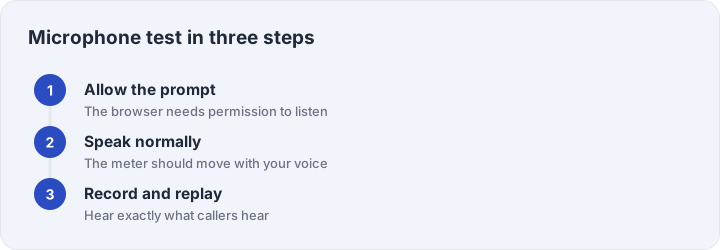
When you press start, your browser asks for permission to use the microphone — that prompt is the standard privacy gate, and the test cannot hear you until you allow it. Once live, the meter on this page follows your voice in real time: speak at your normal call volume and watch how high the bar climbs. That answers the first question people usually have (“is the mic dead or just quiet?”) in five seconds.
The second check matters more: press record, say a full sentence at the distance you would sit from your laptop, then play it back. The playback is the truth — it is exactly the signal other people receive on calls. Muffled playback usually means the mic hole is blocked (laptops pick up dust and keyboard grease), tinny playback means you are too far away, and clipping distortion means your input gain is turned too high.
If the meter does not move
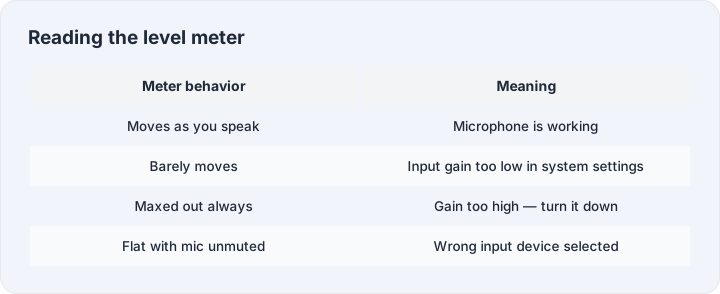
Work down the short list. Make sure the right input device is selected in your system sound settings — external webcams and headset adapters frequently steal the default input slot from the microphone you actually want. Check that the microphone is not muted in the system mixer or by a physical mute switch on the headset itself. On iPhones and Android phones, confirm the browser app has microphone permission in system settings, not just in the browser prompt. If the meter moves here but your voice is still bad in one specific app, that app’s own input settings are the place to look.
Privacy note: the level meter and the recording live entirely in your browser’s memory. Nothing is uploaded, and closing the tab erases the clip — the whole test is designed so that even we could not hear your voice if we wanted to.