Bluetooth audio stutter has a short list of causes, and they are worth checking in order of probability rather than at random. Here is the order, drawn from what actually breaks in real homes and offices.
1. Distance and obstacles
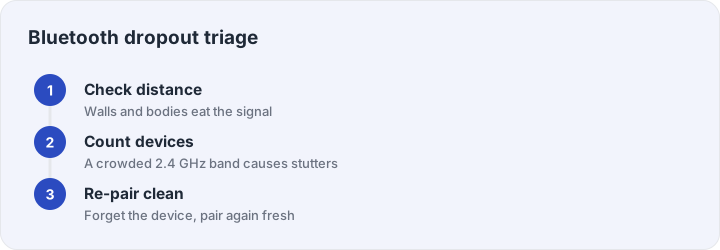
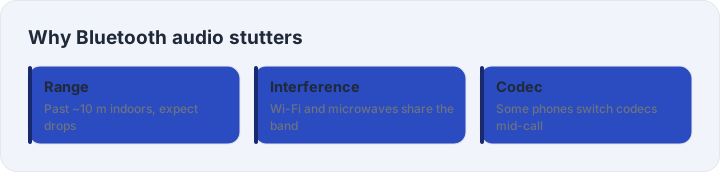
Bluetooth Class radios manage about ten meters outdoors, and indoor walls, bodies and appliances cut that brutally. A phone in a back pocket (body in the way) plus one plaster wall is already marginal. The test is free: bring the phone next to the headphones and play for a minute. If the stutter vanishes at close range, your problem is range physics, and no amount of re-pairing will fix a wall.
2. Band crowding
Bluetooth shares the 2.4 GHz band with Wi-Fi, microwaves and a hundred neighbor networks. A laptop on Wi-Fi streaming to headphones is two radios talking in the same air. Practical moves: sit closer to your router or switch the computer to Ethernet, and keep the phone and headphones on the same side of your body. USB 3 ports and cables are notorious 2.4 GHz jammers — if your desktop’s Bluetooth dongle sits next to a USB 3 drive, move it away.
3. Codec negotiation
Phone and headphones negotiate a codec (SBC, AAC, aptX family); during congestion some devices fall back to a lower-quality codec mid-stream, which you hear as a quality dip or brief dropout. You cannot force codecs on most phones, but you can reduce triggers: close background apps that use the Bluetooth link (second phone connected for calls is a classic), and turn off “multipoint” while listening to music if your headphones support it.
4. Battery and power states
Low battery changes transmit power on some models — stutter that appears only below 20% charge is common enough that it is worth checking before anything deeper. Charge past 50% and retest.
5. The clean re-pair
Old pairing tables accumulate stale state after firmware updates. Forget the device on both ends, put the headphones in pairing mode fresh, and connect again. This fixes the stubborn minority where everything above checks out — corrupted link keys behave exactly like interference, but re-pairing cures them instantly.
6. Firmware updates
If your model has a companion app, check it: dropout bugs are exactly the kind of thing manufacturers patch, and a surprising number of “my headphones are defective” reports close with a firmware note.
7. If all else fails
Test the headphones on a second source device. If they stutter on two devices, the radio in the headphones itself is suspect — warranty territory. If they are clean on the second device, the first device’s Bluetooth stack needs the restart/driver treatment from our no-sound guide. And to confirm the audio path end-to-end once things are stable, the headphone test takes a minute.